
Table of Contents
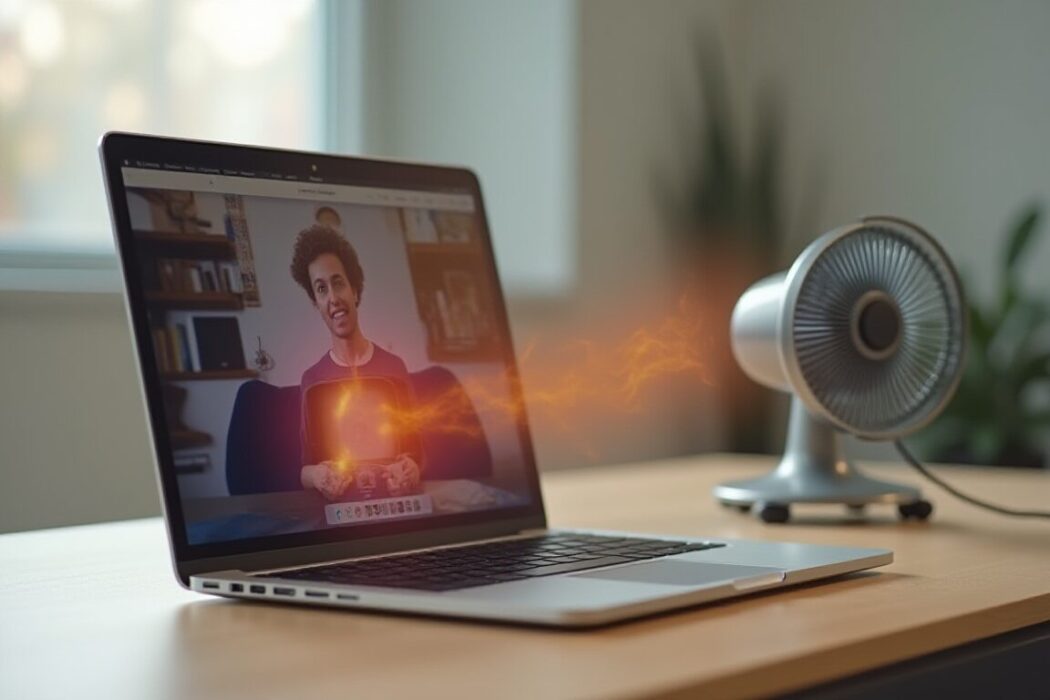
When a laptop overheats during video calls, the real problem is usually a mix of airflow, CPU load, and background apps.
The good news is that most cases are fixable without replacing the machine. If your laptop gets hot, loud, or slow on Zoom, Teams, or Google Meet, start with the steps below.
Quick answer
The fastest fixes are to move the laptop onto a hard surface, close heavy apps, lower your video settings, and make sure the vents are clear. If that does not help, check for dust buildup, old drivers, or a failing fan.
1. Give the laptop room to cool down
Soft surfaces trap heat. Put the laptop on a desk, table, or cooling stand so air can move freely around the vents. If the machine is sitting on a bed or couch, even a powerful laptop can overheat quickly.
2. Close the apps that are stealing CPU power
Video calls already use the camera, microphone, network, and screen processor. Add browser tabs, cloud sync, game launchers, or a design app in the background and the CPU has to work much harder. Closing a few heavy apps can lower temperatures fast.
3. Reduce the video-call load
Turning off HD video, virtual backgrounds, touch-up filters, and unnecessary screen sharing can make a surprising difference. Those features look small, but they can push both the CPU and GPU harder than you expect.
4. Check the vents and fans
Dust can choke airflow and force the fans to spin louder just to keep up. If you can see dust in the vents, a careful clean may help. On older laptops, weak fans or dried-out thermal paste can also cause heat to build up faster than normal.
5. Use a cooling pad or stand
A cooling pad is not magic, but it can help if your laptop runs hot under load. Even a simple stand that lifts the machine off the desk can improve airflow and reduce heat buildup around the bottom panel.
6. Update the software that manages performance
Old operating system updates, buggy camera drivers, and outdated meeting apps can all increase CPU usage. Install updates for Windows or macOS, your browser, and the video-call app. If the laptop still runs hot, check for driver updates from the manufacturer too.
7. Look at power settings and browser behavior
Some laptops run aggressively on “best performance” power plans. That can be useful for demanding work, but it also means more heat. If your laptop is overheating on routine calls, try a balanced power mode and see whether the fans calm down. If you use video calls in the browser, test another browser or fewer extensions as well.
8. Watch for battery or charger problems
A failing battery or incorrect charger can cause extra heat. If the laptop gets hot even when you are doing light work, the battery is swelling, or the charger feels unusually warm, stop using it and get it checked.
9. Know when the problem is hardware, not software
If the machine overheats in short calls, shuts down unexpectedly, or gets painfully hot even after cleaning and updates, the cooling system may need service. That can mean a bad fan, blocked heat pipe, dried thermal paste, or another internal issue.
What not to do
- Do not block the vents with pillows or blankets.
- Do not ignore loud fan noise for weeks at a time.
- Do not keep using a charger that feels abnormally hot.
- Do not stack the laptop on other electronics that already run warm.
FAQ
Why does my laptop overheat only during video calls?
Because video calls use the camera, microphone, network, CPU, and sometimes GPU all at once.
Is it normal for the fan to get loud?
Some fan noise is normal, but constant max-speed fan noise means the laptop is struggling to cool itself.
Will a cooling pad fix everything?
No, but it can help if airflow is the main issue. If the fan or thermal paste is failing, you may need service.
Should I replace my laptop?
Only if the machine is old, the cooling system is failing, or repairs cost more than the laptop is worth.
Bottom line: most overheating during calls comes from too much load and too little airflow. Clean up the background, improve ventilation, and lower video settings before assuming the laptop is done.